tutorial

HDRi Skies FAQ

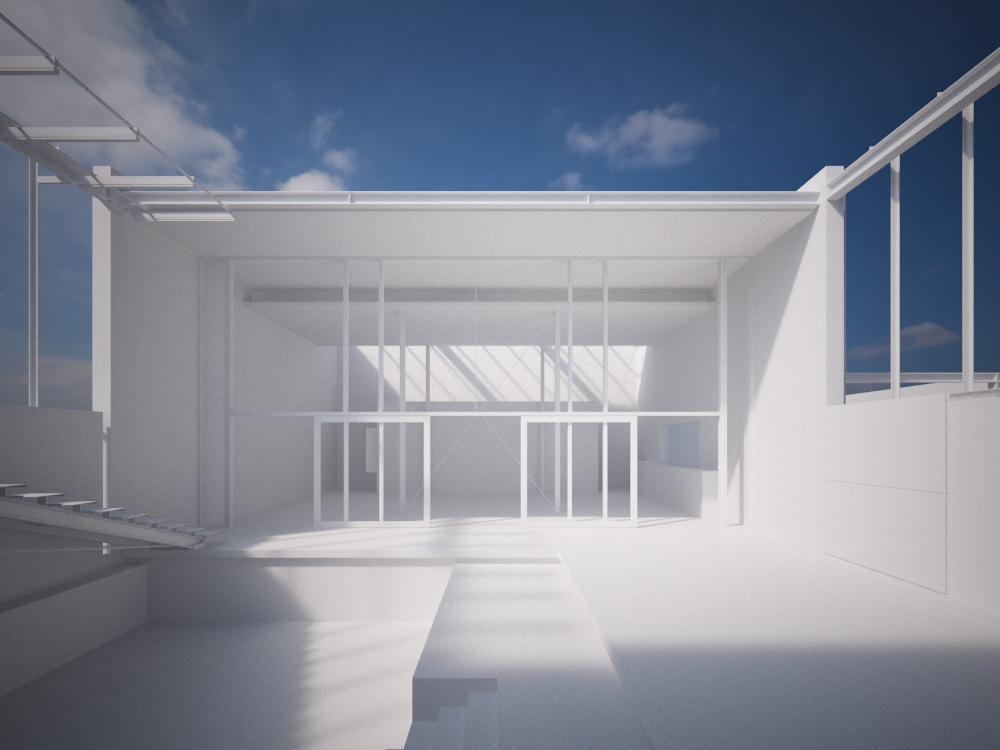
This is just a quick post to answer two of the most commonly asked questions relating to my HDRi skies on 3docean:

1. Why does it look weird in photoshop?

This is because when you open the exr or hdr file in photoshop the default exposure level is very high, you can simply drag the 32 bit exposure slider up and down to preview the full range

2. How do I load the exr/hdr in 3dsmax?

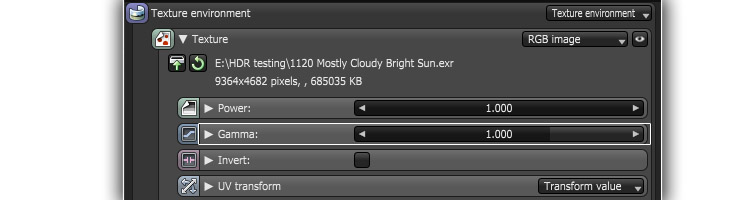
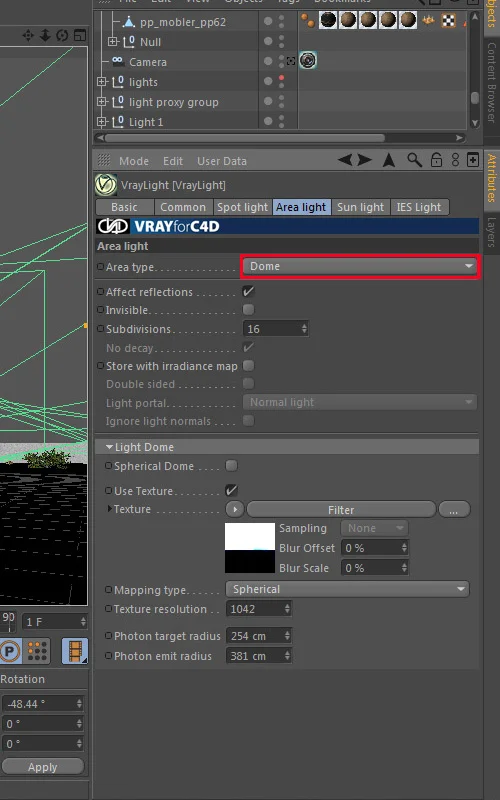
I normally use them in a vray dome light, and load them using the bitmap loader. I like to keep the multiplier of the dome light at 1 and adjust the output of the bitmap to control the intensity of the exr/hdr sky. If you use a physical camera approach then you can usually keep the output value at 1, if not, you might need to lower it as far as 0.005.

Remember to set the mapping to environment and spherical.

exr bitmap loader

Feel free to ask questions, I will update this FAQ with anything useful that comes up.

I go into more detail on how I use hdri skies in my HDRi sky lighting tutorial and even more detail on using HDRi skies together with a vraysun here.

Making of ‘Twins’

First up some of my favourite images from my latest work for Willian O’Brien Jr.. As usual you can click through to see the full set on flickr.

cam15 3200px

cam07

cam10

LANDSCAPING

As with the Allandale House, the landscape mostly came from my imagination, with this as a starting point:

4_twins72045014

We first tried out an autumnal scene with lots of browns/greens contrasted with white stucco clad houses, but I was especially keen to try a snowy scene (winter was still on its way at the time!). After modeling the house in sketchup, I placed it and a rough terrain also made in sketchup into a new 3dsmax scene and started creating a snowy landscape. This was done using the snowflow plugin to make snow cover over the whole terrain object and then the snowplug tool to remove snow from where it shouldn’t be. This is how the terrain plus snow looks in the viewport:

snow

The snow material came from a vray.info video on new vray 2.0 features and is a blend of a vraysss2 material and a vraycarpaint material. This results in a subtle SSS effect and also nice snowy sparkles from the carpaint material. Admittedly you never appreciate the complexity on my finished renders, but it does look nice up close! Snow material set up:

snow01

Next up was to source and/or create snow covered trees. Click the image below for a slideshow of all the trees and bushes used in the scene (11 total), I always think its amazing how few unique trees you need to create a believable forest:

9trees

In hindsight I should probably have added some more pine trees, on some of the views you can see repetition in the tall scots pines.

I ended up buying a winter tree pack from rendering.ru which I thoroughly recommend, the ash and birch trees are beautiful. The fir trees are from evermotion and I added snow to them using snowflow. That process was a real headache. My advice would be to detach a branch and test settings on it first. Start with low mesh settings and gradually add to the particle count until it looks OK. The pine trees are from “HQ plants 2″ by 3dmentor.ru and I added snow to them myself.

snowflow
typical snowflow settings (scene units are mm)

I used forest by itoosoft to scatter the trees. There ended up being just 3 forest objects; one for the tall pines and firs, one for the birch and ash trees that make up the edge of the forest, and one for the snow covered planted area between the houses.

forest01

On the screengrab above, you can see the splines that are used to define different areas, and also to thin out the forest at its edges. Also evident is the clustering of plants which is a great feature in forest, it really helps make the forest look more natural and is very quick to experiment with too.

LIGHTING

As always my favourite part of the project was the lighting. I knew I wanted to go for another subtle diffuse light set up, so experimented with some suitable HDR skies from my library. The ones I tried were 1008, 0902 and 0743 but ended up going for 1008 again (as Allandale house) as having even a slight amount of warmth from the sun didnt look right.

I used vrayenvfog with a mesh as a gizmo to keep the fog away from the actual houses (didn’t want fog inside!) and a fog distance of 450 metres. No maps controlling density, colour or emission. The fog is set to scatter GI as it looked nicer and there wasnt much difference in render time. If I had gone for a darker time of day, having the interior lights interact with the fog outside the windows would have been really interesting, maybe next time!

Colour balance was very important in this scene, and was something I experimented with right up to the final renders. Initially I had a very neutral colour balance, with slightly warm interior lights, but eventually I grew to like the blueish tint more and more. Being able to change kelvin values on lights and on the camera makes this process very intuitive in vray. I appreciate being able to think about these things in photographic terms rather than tweaking rgb values. I set the vrayphysicalcamera white balance to 4200K which gave a nice blue tint, then I had to push the interior lighting down to 3100K so that they still looked warm.

lights
Vray Light Lister: I have some fill lights which I set to have no effect on speculars or reflections to speed up renders times slightly. The main dome light (1008) had the subdivs increased to 16 from 8 as it seemed to give more accurate shadows, but above 16 didnt seem to make much difference (it will be very scene dependent but is worth playing with the dome light subdivs to see how it affects noise).

Camera settings.

FURNITURE

The houses are left intentionally stark and bereft of home comforts in order to highlight the abstract nature of the volumes and the views out to the surrounding landscape. The few objects were chosen to try and give a timeless quality and because I thought the clean lines worked well with the houses.

I went for:

FINISHING TOUCHES

I used vray lens effects for the bloom and glare, which worked out really well I think. It’s best to experiment with the values on interactive mode till you get something you like. Bear in mind that you really need bright light sources if you want seductive looking glare. My interior spotlights had vraylightmaterials applied to them and the float value (right click and hold on the vrayFB to inspect rgb/float values) was often up around 5-20.

Once in Photoshop, I added a slight s-curve to boost the contrast more on all the images. I added some detail to the snow, tracks from people, skiers etc. by copying and pasting from reference images and setting the blending mode to darken.

People often ask about my render settings, so I’ll share there here even although there isn’t anything remarkable about them. Note that they are optimized for rendering all the foliage quickly, normally I would enable detail enhancement and retrace threshold. As it was the interiors looked OK without DE and retrace threshold.

rendersettings

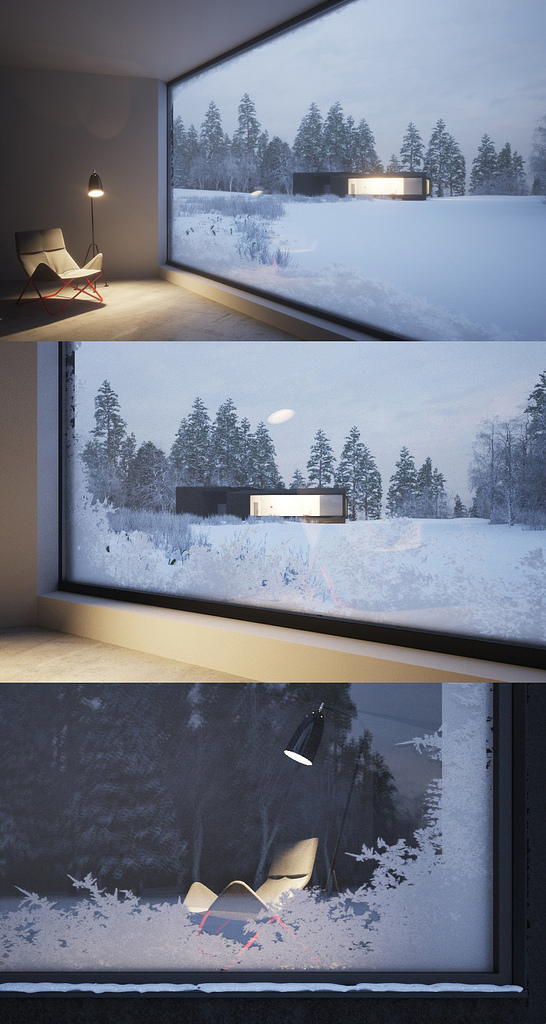
I am very grateful to my client for his patience and willingness to try new things. Some things I tested didnt end up making it to the final images though! I tried making frost covered windows, and snow cover on the roofs, but they ended up being distracting to the architecture. Its easy to get carried away with small details and forget that the focus of all the images should be the architecture.

Frosty windows

Sketchup!

Don’t let anyone tell you sketchup is not a ’serious’ modeling program and that it produces untidy geometry, like any program its how you use it that counts. The genuis of sketchup lies in it’s tidy interface, brilliant snapping, and ease of use. Sketchup has it’s limits of course, but for architectural visualisation I think it is the perfect tool for modeling. Every single project in my portfolio started life in sketchup.

The start of any project for me is understanding the building and modeling it - as quickly and as efficiently as possible. This timelapse screen recording shows the whole process, speeded up 10x. The whole thing took about a day (3 hrs 46mins, excluding all the coffee breaks). I like to get the overall form of the building done first, but identifying and making components for any repeating elements (windows, doors, whole apartments) as I go. You can then go back and add detail later on.

Sketchup Arch Viz Modeling Timelapse from Peter Guthrie on Vimeo.

Free texture - expanded metal

expanded metal mesh 1

Not a new technique, you can find good tutorials by Bertand Benoit and Philippe Steels here and here, but it remains the best way to create displacement maps for repetitive things like roof tiles, metal panels and in this case expanded metal mesh. The great thing about doing a material like this with displacement rather than a straight opacity map is that it looks different depending on the viewing angle, which adds to the realism.

I made a quick model of expanded metal that looks something like this:

model

then did a quick top-down render and saved the zdepth element as a 16 bit png. Its important to save as 16 bit if you want a nice clean and smooth displacement, 8 bit often doesnt have enough grey levels so you get a stepped gradient which looks ugly when displaced.

This is what the finished displacement map looks like:

expandedmesh

16 bit png download link

If you use vray, then the displacement settings were (units: mm) :

settings

The actual material settings were very simple, a brownish diffuse colour, slightly more pink reflect colour, ward brdf

And finally some renders (click for higher res):

expanded metal mesh 1

expanded metal mesh 2

Vraysun and HDRi sky tutorial

Occasionally its nice to be able to use a HDRi environment together with a vraysun, for when you want stronger shadows than the HDRi supplies. The trick is in aligning the sun with the HDRi so that the shadows from each match up. You can do this through trial and error, but if you want to change the rotation of the HDRi then its a pain. Rather than try to explain the steps involved, I thought it would be quicker doing a video tutorial. I’m afraid it turned out to be 13 mins long, but hopefully it will help.

Watch on vimeo for full HD.

The code for the wired rotation is:

radToDeg(Z_Rotation/360)

HDRi Sky Lighting Tutorial

preview

Thought I should do a quick tutorial on how I use these HDRi Skydomes I’m selling. Note that this is just one of many possible workflows, and there are probably lots of tricks I’m missing and even things I do completely wrong. I should also say that I work mostly with still images, not animations.

1. Here is a typical architectural scene. It is a model I made of Waro Kishi’s Fukaya house in Japan that never really went anywhere.

wire

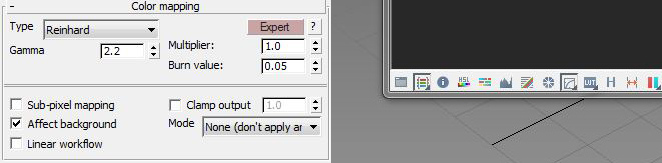
2. I use a gamma 2.2 workflow together with reinhard color mapping, so not strictly LWF but shares some of the advantages. I don’t want this to turn into a LWF tutorial or discussion, but this post on cgpov.com pretty much sums up how I feel a gamma corrected workflow helps us as visualisation artists.

mapping

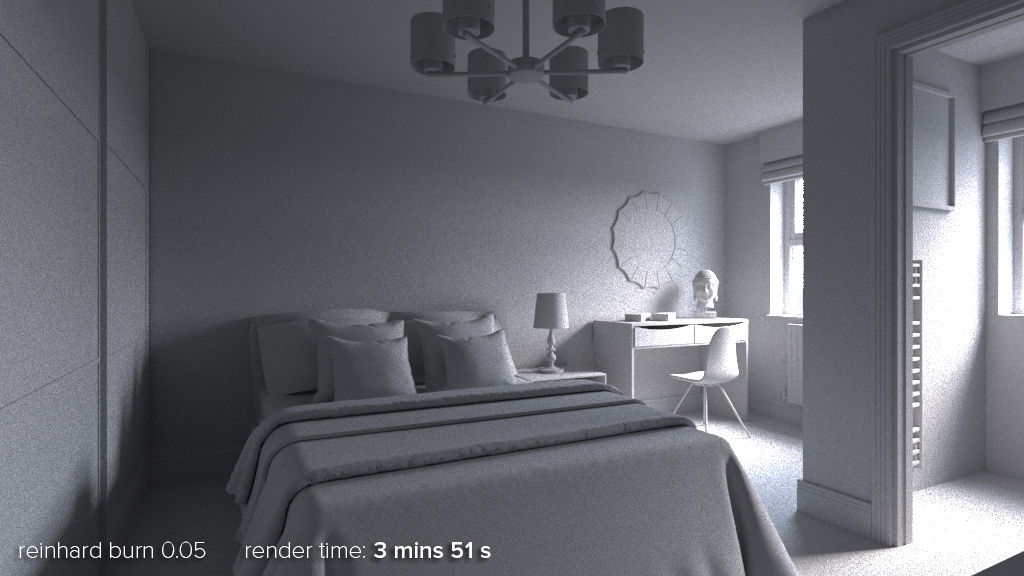
The reinhard color mapping helps to control burnt out (overexposed) areas. Screenshot of my color mapping set up: The burn value of the reinhard color mapping typically ranges from .75 for an exterior to 0.05 for an interior. You need to experiment with the value until you gain control over the burnt out areas. Here is an example with a camera pointing at the HDR sky:

burnvalue

For the final render, I use the Vray Frame Buffer, and add a slight s-curve to the output to compensate for the lack of contrast that the gamma corrected workflow introduces:

curves correction

3. Add a vray dome light and load the exr/hdr using the max bitmap loader. Set the mapping type to environment/spherical. If you are using .hdr files, you can use the vrayHDRi loader instead. It makes no difference whether you use the bitmap loader or the vrayHDRi loader, the vrayHDRi adds a bit more control in that you can control the render multiplier independently from the viewport multplier. Set the output of the .exr to 1 and the vraylight multiplier to 1. If your hdr/exr has no alpha channel it seems you can save quite a bit of memory while rendering (approx 200mb in my case) if you load the exr/hdr as realpixel float rgb rather than the rgba option. (NOTE: ONLY applicable to 3dsmax 2009)

EDIT: Please don’t pay too much attention to the 3dsmax 2009 realpixel hdri loading option, it just saved a little bit of memory which is why I mentioned it. I now use a later version of max and no longer have this option either.

bitmaploaderparams
[Click for original size]

4. To rotate the HDR you need to enter a U offset value from 0-1, so to rotate 180 degrees with would enter 0.5, 270 degrees 0.75 etc.

5. Add a vrayphysicalcamera, and set the aperture and shutter speed to something that would work for a typical outdoor scene, like F4, 1/200th & ISO 100. Remember that you are in effect using a completely manual camera, there is no ‘P’ or automatic mode so you need to experiment with different exposures until you get a good result.

scenesetup
[Click for original size]

6. Hit render and see what you get. If it looks too dark/bright I tend to adjust the bitmap’s output rather than the vraylight multiplier, so that I can have a couple of ready setup HDRi’s ready to drag and drop onto the dome light. In the examples below I use an output value of 1.5.

3D tree material tutorial - Leaves

20091109 finaltree

A tutorial on making leaf materials for 3d trees, in this case a sugar maple (in autumn).

20091109 grey_noopacity

Firstly, some observations on opacity mapped leaves vs. geometry leaves. As you can see in the image above, the images in this post were made using opacity mapped leaves. After some tests on my farnsworth house project, I have come to the conclusion that it is quicker in most cases to use opacity mapped leaves. Its true that in simple scenes trees with geometry leaves may render quicker as VRay doesnt have to calculate the opacity of thousands of leaves, but in dealing with complex scenes with millions of polygons the advantage in using (a lot) less RAM is huge. The processes involved in swapping opacity mapped plates for geometry are also very long winded and very tedious!

Exporting from Onyxtree. I went with 4 polygons per leaf so that the leaves aren’t just flat. Remember to set the dimensions you want the individual leaves, and change the units when you export. You can also make it export 3 different leaf IDs with varying sizes. I normally export as a .obj file.

onyxtree

Opacity mapping. It’s important to make sure the opacity map is just pure black or white, with a sharp edge. The opacity map I used can be found here (its not a great example!). You should also turn off filtering in the bitmap loader options (screenshot).

20091109 grey
As imported to 3dsmax and given grey materials.

VRay2sidedMtl. The vray 2 sided material works best with geometry that has no thickness, which is what onyxtree outputs. It is a very quick way of generating a SSS (sub-surface scattering, think candle wax, skin, milk etc) type look. The image below is rendered using a vray2sidedmtl on all leaves with grey submaterials and a hand drawn image for the vein skeleton.

20091109 grey_transparency

2sided

Front material. The front side material is a basic vraymaterial with a diffuse map and a reflection map. Click here for front vray material set up. The color correction map is to produce slightly different hues of leaf for each of the 3 sub leaf types (you should have got a mult-subobject material when you imported the .obj file). I usually make the first leaf and then copy and paste it to the 2nd and 3rd and just change the hue value slightly. The diffuse map looks like this, and the reflection map is a b&w copy with levels adjusted to make it more contrasty.

20091109 no_2sided
Render showing front leaf material on both sides with no transparency.

Back material. The back material is a copy of the front material but with a different diffuse bitmap and not quite as reflective. Note that I overlaid the veins skeleton jpg on top in photoshop as well. (without it, the veins looked too light when viewed from the underside as they took 100% of the lighter back material)

20091109 no_transparency
Render showing 2sided material with correct front/back materials but no transparency.

Finished result Click image for 800px version. Rendered using vrayphysicalsky and sun, and a vrayphysicalcamera.

20091109 finaltree

Vray Dirt Tutorial

A quick tutorial on adding dirt to specific materials in Vray. A very useful application of the vraydirt shader in Vray is to make materials look dirty/weathered. Used in it’s basic form, with default settings, vraydirt can be used to add a general darkening around edges/corners in your 3d model. It can also be modified to affect only areas directly below 3d features.

dirt_quad

a - Shows vraydirt using it’s default settings (dirt equal on all sides)
b - Shows vraydirt using settings to force the dirt to work only in a downward direction
c - As b, but with ‘invert normal’ ticked
d - b and c used within a vraycomptex map, set to minimum
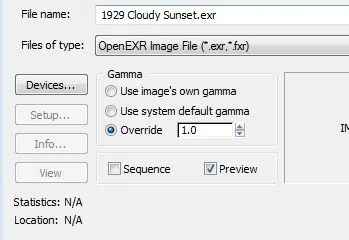
By experimenting with the distribution, falloff and z-bias values, I managed to get the downward effect I was looking for (exact settings in screen grab below). I then combine 2 versions of the vraydirt map inside a vraycomptex map. The first version is for concave creases, the other for convex creases by ticking ‘invert normal’. The vraycomptex map is set to minimum so that it combines the two maps by always using the darkest rgb value.

concboards

Above is a render with a concrete material demonstrating the effect. In this case, the occluded map is the same as the unoccluded map but darker and with a slight rusty hue (achieved using a color correction map).

The diagram below shows how the material is made up, and shows the values I used:

material

To take this a step further, you could additionally add a map to vary the radius of the vraydirt effect. (Note that the value I used for radius is in mm)

And finally an animated gif showing renders with and without the vraydirt:

bridge - gif

vrayRT for Architectural Visualisation

Very impressed with vrayRT so far, looks like it will be really useful for a lot of my work.

Here’s a 10min (longer than intended!) demonstration on vimeo (no sound). VrayRT is using my macpro (2.8 octo) and a slave i7 920.

VrayRT (Realtime) from Peter Guthrie on Vimeo.

Click through to vimeo for the HD version

Vray grass tutorial part 2

cam02_longgrass0000View large

Before I get on to the material settings for the grass I’m going to show how I used similar techniques as in part 1 to make shorter grass. This time, I made 5 new individual blades, and made them a lot smaller, more random and also gave them a texture.

I made 3 lengths of grass, the longer ones had taller, less curved, blades. These were then scattered about 1000 times onto a 500mm dia. circle using advanced painter in randomize mode. The next step was to attach all blades into one editable mesh/poly and reset the xform, this seems to be vitally important before exporting it as a vrayproxy. Before I did this, the vrayproxy was using huge amounts of memory when rendering.

grass01

Short grass

grass02

Longer grass - some stats: approx 8000 polys per proxy x 1000 proxies = approx 8 million total polygons. 3dsmax uses about 2 gig memory for this scene and each view rendered pretty quickly considering I had vrayfog and depth of field on.

Note: I use vrayscatter (a commercial plugin but well worth the money) to scatter the proxies. There are lots of tutorials for it here. You can also use scatter by Peter Watje, advanced painter, Forest by Itoosoft, Groundwiz Planter or 3dsmax particles.

Material set up:

The main material for the grass is a multi-sub object with 3 materials within it. Each of the original 5 blades of grass were assigned one of these material IDs at random before they were scattered. Each material is a vraymaterial within a vray2sidedmaterial. Hopefully the screenshots are enough to describe the set up. The three sub materials are all essentially the same, and use the same Bitmap, but use a color correction map to subtly shift the colour (hue). The vray2sided material gives the SSS effect, and is the best option for thin geometry (no thickness) like grass and tree leaves.

mat01psd (click for larger size)

You can optionally try turning off ‘trace reflections’ to try speeding things up. This means the grass will still pick up highlights from the sun, but won’t pick up proper reflections, like the colour of the sky. I found the speed increase to be hardly noticeable in my tests, and it just didn’t look as good.

cam01_longgrass0000View large

cam01_clover0000View large

cam02_cloverView large

UPDATE:

There’s nothing special about my render settings or scene set up for this scene, just a vraysun & sky, vrayphysical camera and my usual colour mapping settings. To make the renders look a bit more interesting I decided to play a bit with sun and shadow, and also back lit the grass so that the transparent effect was evident. As you can see from the screengrab below, I have the sun coming from slightly behind the brick wall, and it is also very low in the sky. When experimenting with materials it’s very important to set your scene up to mimic an effect you would see in the real world.

grass set up
Click image for full size

If you are interested in downloading an example scene, please visit the tutorials section of vray.info and navigate to the 2nd part of my grass tutorial.